
Hi, I’m Kogiso.
These days, I can’t imagine a workday without my AI partners like ChatGPT or Gemini. However, there was one minor task that always felt like a giant hassle.
It happens when I’m giving instructions to AI about specific files. Whether I’m asking it to “summarize this file” or “explain this directory structure,” I used to find myself opening Finder, tracing the folders manually, and typing out long, complex file paths by hand…
What a waste of time, right? That’s why I want to share a “secret trick” I found to instantly copy and paste full file paths from your Mac straight into your AI chat.
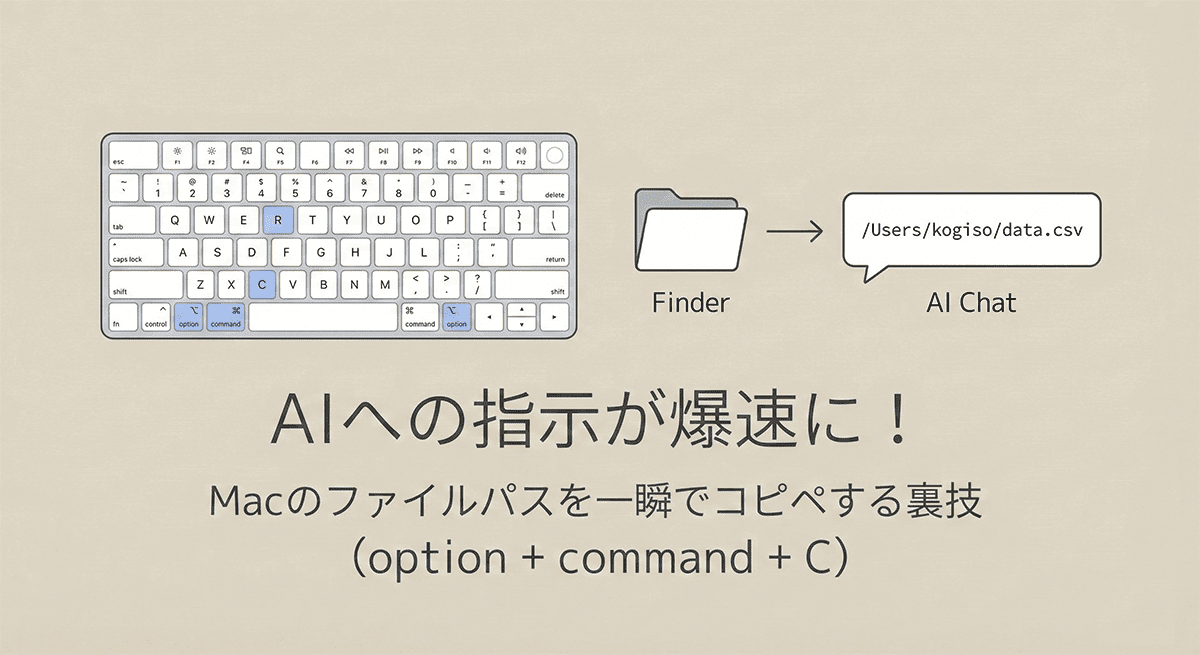
1. The Magic Shortcut: option + command + C

Even the AI is smiling!
This is the star of the show. Once you find the file you want to tell the AI about in Finder, simply select it and hit these three keys at the same time:
option + command + C
While a normal copy command (Command + C) copies the file itself, this shortcut copies the “File Path (as text)” to your clipboard.
Now, just hit command + V in your AI chat. An accurate “address” like /Users/kogiso/Documents/work/data_2026.csv is entered in a split second. When the AI knows exactly where the file is, it can provide much more accurate results!
2. Pro Tip: Keep the “Path Bar” Visible
The shortcut is powerful on its own, but if you want to see exactly where you are at all times, I highly recommend enabling the Path Bar.
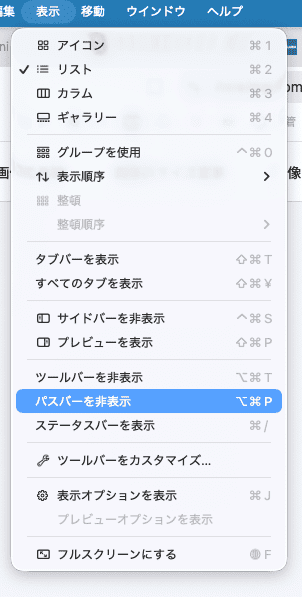
- How to enable: In the Finder menu bar, go to [View] → [Show Path Bar].
This adds a bar at the bottom of your Finder window showing your current folder hierarchy. It’s a great way to double-check your location while chatting with AI, helping you avoid mistakes before they happen.
Summary: Work Smarter in the AI Era
By replacing the analog task of “checking the location and typing it out” with this simple shortcut, you can keep your focus on the actual conversation with your AI.
Let’s save that extra time to brainstorm even better ideas with AI!


コメント